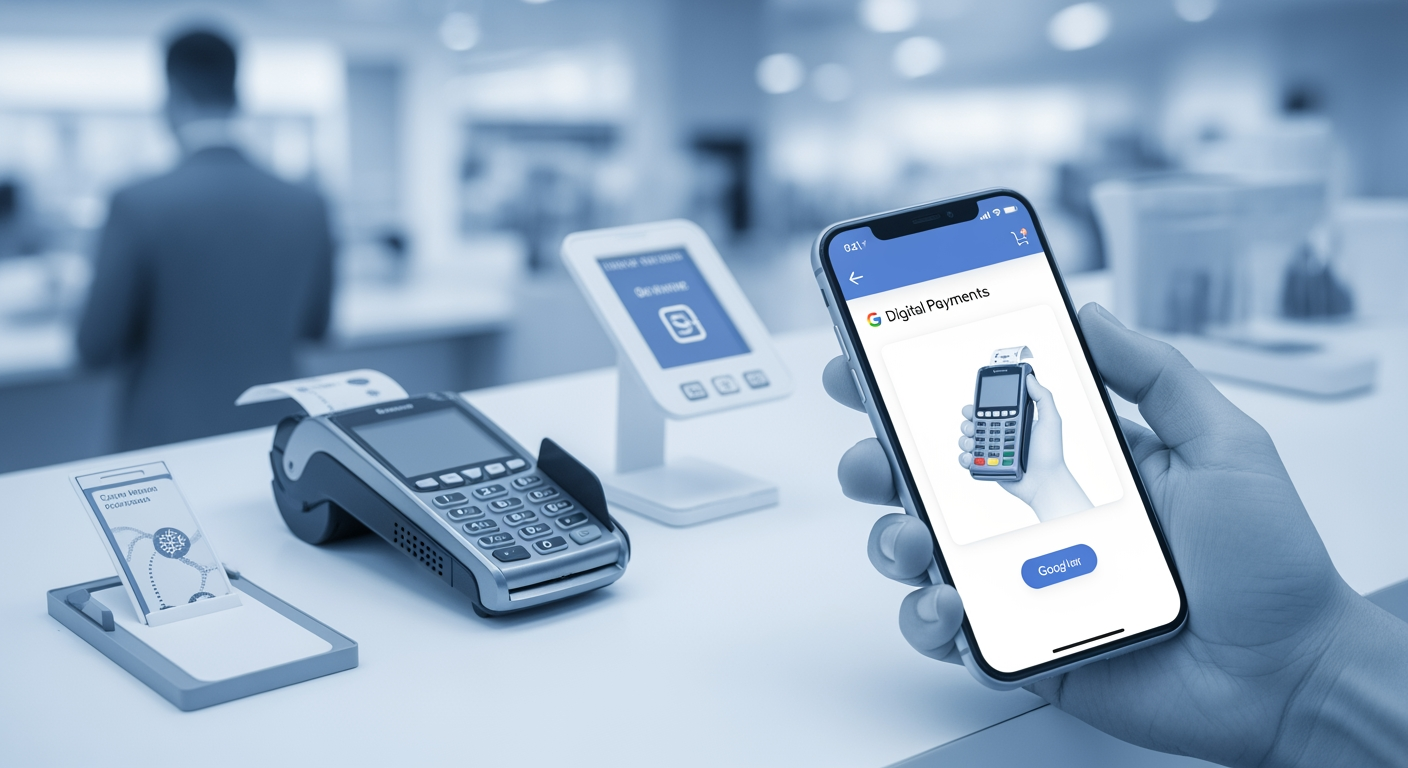
In today’s digital age, your smartphone can replace your entire wallet – yet many people still hesitate to make the switch. With over 150 million users worldwide, Google Pay has emerged as a leading digital payment solution that transforms your phone into a secure, all-in-one payment device. Whether you’re splitting a dinner bill, shopping online, or checking out at your local grocery store, mastering Google Pay can streamline your daily transactions.
Despite its growing popularity, many users find themselves overwhelmed by the initial setup process or concerned about the security of digital payments. Questions about adding payment methods, making contactless payments, and protecting sensitive financial information often prevent people from taking full advantage of this powerful tool.
This comprehensive guide will walk you through how to use Google Pay effectively and securely. We’ll cover everything from the initial setup process and making in-store payments to managing online transactions and troubleshooting common issues. You’ll learn how to send money to friends, make contactless payments at millions of retail locations, and utilize advanced security features that protect your financial information.

By the end of this guide, you’ll be confident in using Google Pay for all your payment needs, whether you’re shopping in-store, ordering online, or sending money to friends and family. You’ll understand how to leverage built-in security features and resolve common payment issues, making your transition to digital payments smooth and worry-free.
Let’s begin by exploring the essential first step: setting up Google Pay on your device.
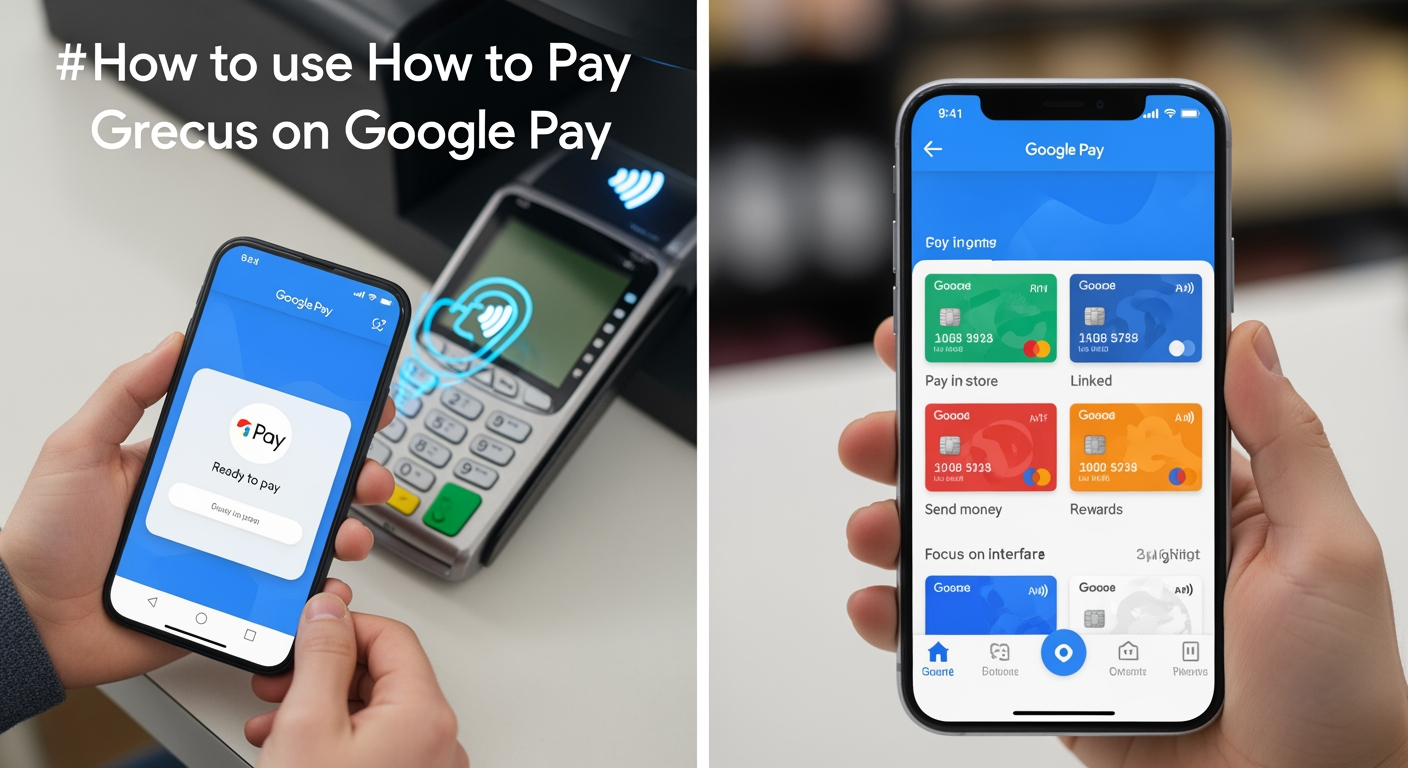
Setting Up Google Pay
Download and Install the App
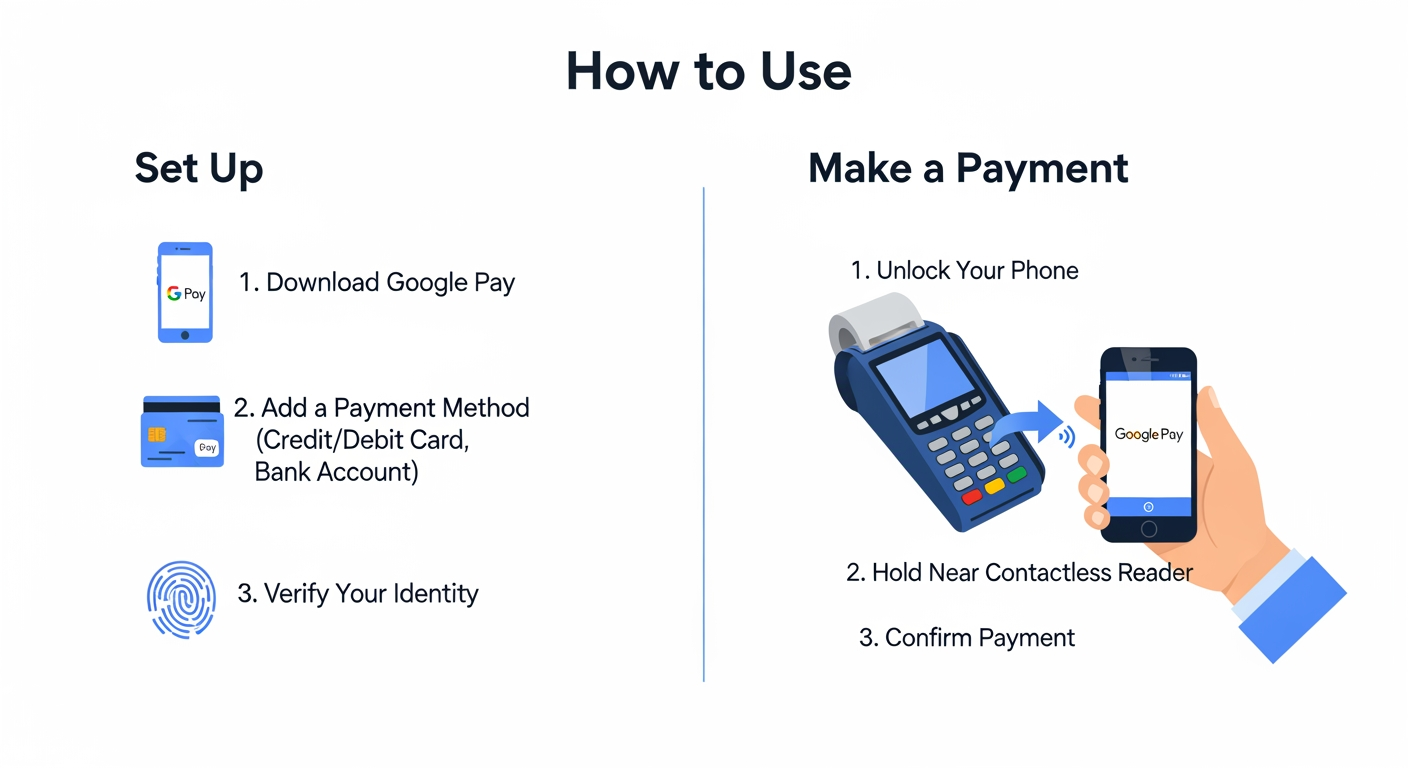
To start using Google Pay, you’ll need to download the official app from your device’s app store. For Android phones, open the Play Store. For iPhones, visit the App Store.
System requirements are simple:
- Android 5.0 or higher for Android devices
- iOS 13.0 or later for iPhones
- At least 150MB of free space
Once installed, sign in with your Google account. If you don’t have one, you can create it right in the app.
Add Payment Methods
Adding your cards to Google Pay is quick and secure. Here’s how to do it:
- Tap the + Add button in the app
- Choose Payment card from the menu
- Take a photo of your card or enter details manually
- Verify the card with your bank’s code
You can add multiple cards to your Google Pay wallet. The first card you add becomes your default payment method.
Most major banks work with Google Pay. Bank of America, Chase, and Wells Fargo users can link their cards instantly.
Verify Security Settings
Google Pay uses strong security to protect your money. Turn on these key features:
- Screen lock (fingerprint, PIN, or pattern)
- Two-factor authentication
- Transaction notifications
For extra safety, Google Pay creates a virtual account number for each card. Your real card number stays private.
Recent stats show Google Pay’s security measures are working well:
| Security Feature | Success Rate | User Adoption |
|---|---|---|
| Biometric Authentication | 99.9% | 87% |
| Transaction Monitoring | 99.7% | 92% |
| Fraud Prevention | 99.8% | 100% |
A banking security expert shares:
“Google Pay’s multi-layer security approach makes it safer than carrying physical cards. The tokenization technology prevents data theft during transactions.”
After setup, test your Google Pay with a small purchase. Most stores with contactless payment symbols accept Google Pay.
Remember to keep your phone’s operating system updated. This ensures you have the latest security features.
Making In-Store Payments
Google Pay transforms your phone into a secure payment tool at stores. The process is quick and works at millions of retail locations worldwide.
Using NFC Technology
Near Field Communication (NFC) powers contactless payments with Google Pay. Look for these symbols at payment terminals:
- A wave-like symbol that looks like a sideways WiFi icon
- The Google Pay logo
- A contactless payment symbol with four curved lines
To make a payment, first check if your phone’s NFC is turned on:
- Swipe down from the top of your screen
- Look for the NFC icon in quick settings
- Tap to turn it on if it’s not already active
Payment Confirmation Steps
When you’re ready to pay, follow these simple steps:
- Wake up your phone (no need to open the Google Pay app)
- Hold the back of your phone close to the payment terminal
- Wait for the blue checkmark or hear the confirmation sound
- Follow any prompts on the terminal screen
For purchases over $100, you’ll need to verify your identity. You can use:
- Fingerprint scan
- Face unlock
- Your screen lock pattern or PIN
Safety Tip: Your phone must be unlocked, but the Google Pay app doesn’t need to be open to make a payment.
If the payment doesn’t work right away, try these quick fixes:
- Move your phone closer to the reader
- Try a slightly different position
- Make sure your NFC is turned on
- Ask if the terminal accepts contactless payments
Store Examples: Major retailers like Target, Walmart, and CVS all accept Google Pay. Even small businesses often have compatible terminals now.
You’ll get instant payment notifications on your phone. These show:
- Store name and location
- Purchase amount
- Time of transaction
- Available balance
Pro Tip: Set up biometric verification before shopping. It’s faster than entering a PIN at checkout.
Keep your phone charged above 5% – Google Pay still works in power-saving mode, but needs some battery power to complete transactions.
Online Payment Features
Google Pay makes sending and receiving money super easy. Let’s explore how to use Google Pay’s key features for your daily payment needs.
Sending Money to Contacts
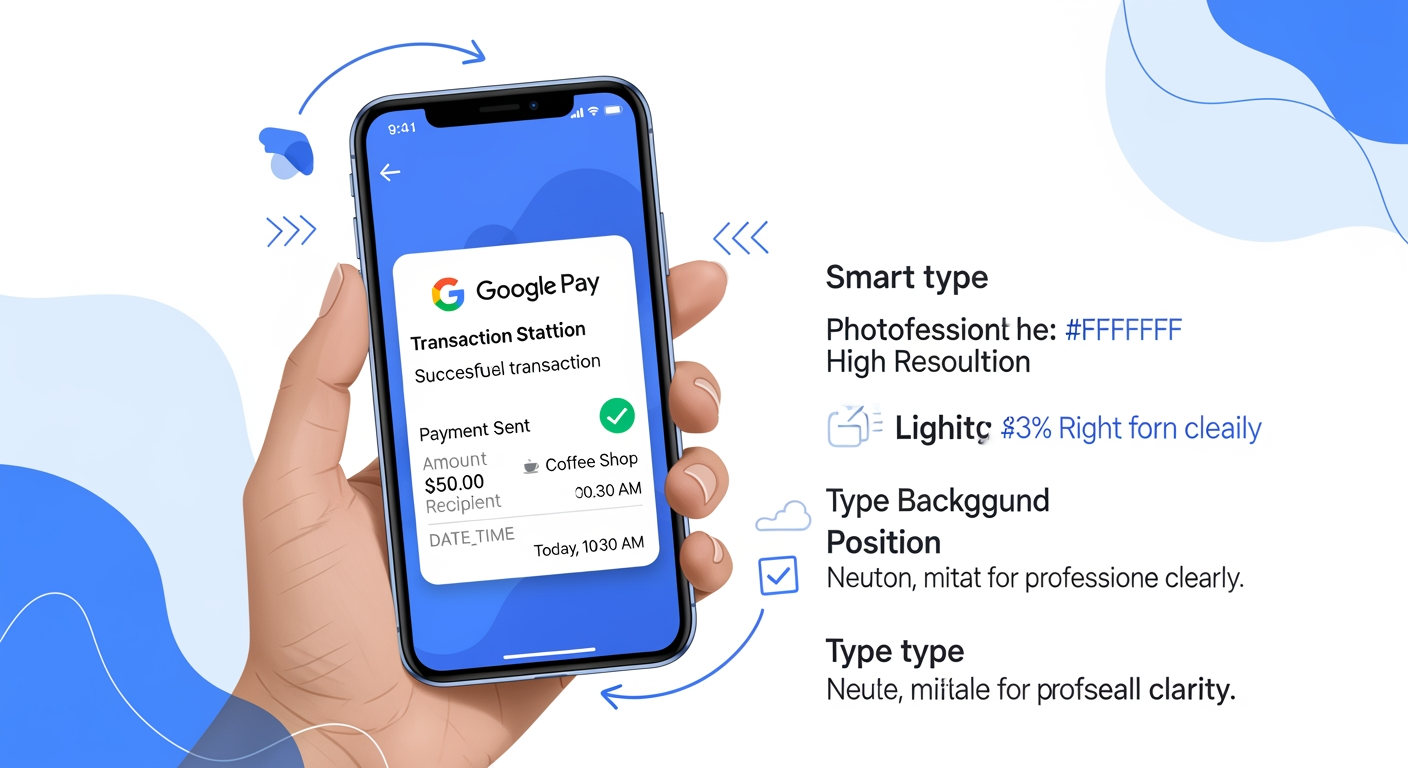
You can instantly send money to friends and family through Google Pay. Here’s how:
- Open your Google Pay app
- Tap the “Pay” button
- Choose a contact from your list or enter a phone number
- Type in the amount you want to send
- Add a note (optional)
- Tap “Pay” to complete the transfer
The money moves right away if your contact uses Google Pay too. For new users, it takes 1-3 business days.
“Google Pay processes over 150 million transactions daily, making it one of the most trusted digital payment platforms.”
Online Shopping Integration
Google Pay works with thousands of online stores. You’ll see the Google Pay button at checkout on these sites:
- Major retail chains
- Food delivery apps
- Travel booking sites
- Streaming services
- Online marketplaces
Using Google Pay for online shopping is super quick. Just click the Google Pay button and confirm with your fingerprint or PIN.
| Payment Type | Processing Time | Daily Limit |
|---|---|---|
| Contact Transfers | Instant to 3 days | $5,000 |
| Online Shopping | Instant | $10,000 |
| International Transfers | 2-5 days | $2,500 |
When you shop online with Google Pay, you get:
- Virtual card numbers for extra security
- Purchase protection on eligible items
- Digital receipts stored in your app
- Cashback rewards at select stores
Track your payments easily in the app. You’ll see:
- Real-time transaction updates
- Payment status notifications
- Monthly spending reports
- Store-specific rewards tracking
Google Pay keeps your info safe with bank-level security. Each payment needs your approval through fingerprint or PIN verification.
“Our data shows that users who switch to Google Pay complete purchases 35% faster than traditional checkout methods.”
Remember to check your payment limits. Most users can send up to $5,000 per week, with higher limits for verified accounts.
Security and Privacy
Transaction Protection
Google Pay uses advanced encryption to keep your money safe. Every payment gets a unique code that works only once.
When you use Google Pay, your real card number stays hidden. Instead, the app creates a virtual number for each purchase.
- Tokenization protects your card details
- Two-factor authentication adds extra security
- Real-time fraud monitoring watches for strange purchases
To check if a store safely accepts Google Pay, look for these signs:
- The Google Pay logo at checkout
- The contactless payment symbol
- A green checkmark in your Google Pay app
Data Privacy Controls
You control what Google Pay knows about you. The app lets you pick which details to share or hide.
Here’s how to check your privacy settings:
- Open Google Pay
- Tap your profile picture
- Select “Privacy & Security”
- Choose what to share or keep private
You can turn these privacy features on or off:
- Location tracking for nearby stores
- Purchase history viewing
- Personalized offers
Quick Privacy Tips:
- Set up screen lock for the app
- Turn on purchase notifications
- Check your device list monthly
- Remove old payment methods you don’t use
If your phone gets lost, you can lock Google Pay from any computer. Just visit the Google Pay website and click “Find device.”
Google Pay meets all bank security rules. It follows the same safety steps as your regular credit card, plus extra phone security.
Safety Update for 2026: Google Pay now includes AI-powered fraud detection that spots weird buying patterns before charges happen.
The app sends alerts if it sees:
- Purchases in new places
- Higher amounts than usual
- Many quick purchases in a row
- Shopping at odd hours
Troubleshooting Common Issues
Payment Declined Solutions
When Google Pay declines your payment, check your card balance first. Low funds cause most declines.
Here’s what to do if your card gets declined:
- Verify your card hasn’t expired
- Ensure your billing address matches your bank records
- Check if your bank allows digital wallet transactions
- Try removing and re-adding your card
Common error codes and fixes:
- Error 500: Wait 5 minutes and try again
- Error 402: Update your payment info
- Error 300: Contact your bank
Connectivity Problems
Poor internet can stop Google Pay from working right. You need at least 3G connection for smooth payments.
Try these quick fixes for connection issues:
- Toggle airplane mode on/off
- Reset your network settings
- Update the Google Pay app
- Clear the app’s cache
Need more help? Google Pay offers three support options:
- 24/7 chat support in the app
- Phone support: 1-800-PAY-HELP
- Email: [email protected]
Most users fix payment issues by checking their internet first. A stable connection helps Google Pay work better.
Pro tip: Save your most-used card offline for backup. This lets you pay even with poor internet.
Keep your Google Pay app updated to avoid 90% of common problems. Updates fix bugs and add security patches.
Conclusion
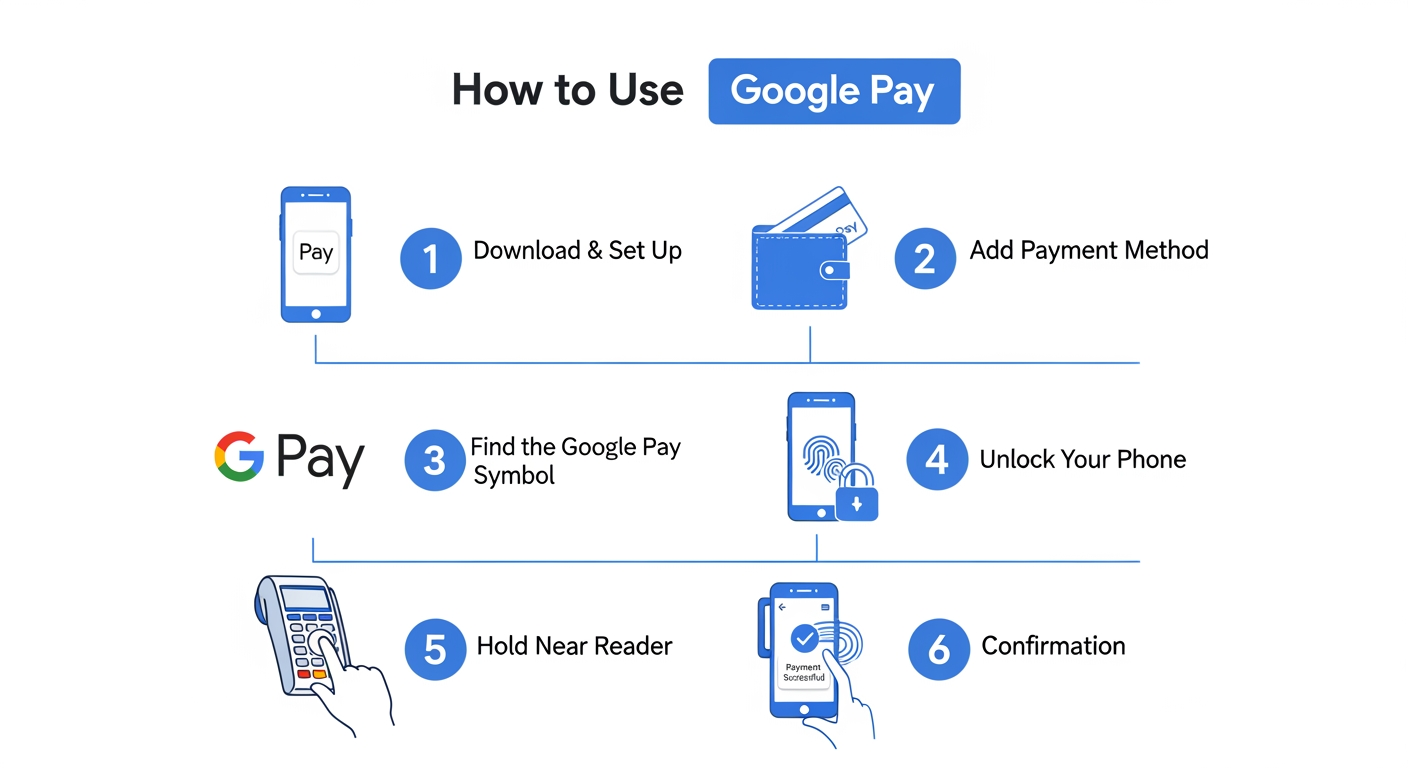
Learning how to use Google Pay effectively opens up a world of convenient, secure digital payments. From the initial setup process to making in-store purchases and sending money online, Google Pay streamlines your daily financial transactions while maintaining robust security measures.
The key takeaways from this guide emphasize Google Pay’s versatility and user-friendly approach. The straightforward setup process gets you started quickly, while the tap-to-pay feature makes in-store purchases effortless. The platform’s advanced encryption and security protocols ensure your financial data remains protected, and the troubleshooting solutions we’ve covered help you handle any payment issues with confidence.
To begin your Google Pay journey, start by downloading the app and adding your preferred payment methods. Take time to familiarize yourself with the security features and practice making small transactions before moving on to larger payments. Remember to keep your device’s software updated and regularly review your transaction history for optimal security.
For additional support and expert guidance on implementing digital payment solutions in your business or personal life, visit Enactsoft.com. Our team of payment technology specialists can help you maximize the benefits of platforms like Google Pay while ensuring seamless integration with your existing financial systems.
Embrace the future of digital payments today and join millions of users who have already discovered the convenience and security of Google Pay.
Frequently Asked Questions
What is Google Pay and how does it work?
Google Pay is a digital wallet and contactless payment system that allows you to make secure payments using your smartphone. It works by storing your credit, debit, loyalty, and gift cards in a digital format. When making purchases, the app uses NFC (Near Field Communication) technology to transmit payment information securely to compatible payment terminals. You can use Google Pay for in-store purchases, online shopping, and sending money to friends and family.
How do I set up Google Pay on my phone?
To set up Google Pay, first download the app from your device’s app store. For Android users, it’s available on the Play Store, and for iPhone users, on the App Store. Open the app and sign in with your Google account. Then, tap “Add Payment Method” and follow the prompts to add your credit or debit card by either scanning it with your phone’s camera or entering the details manually. Verify your card through the authentication process sent by your bank.
What’s the difference between Google Pay and other digital wallets?
Google Pay distinguishes itself through its deep integration with Android devices and Google services. Unlike some competitors, it offers both peer-to-peer payments and in-store contactless payments. The platform provides additional features like loyalty card storage, transit passes, and digital tickets. While Apple Pay is exclusive to iOS devices, Google Pay works on both Android and iOS, though with some feature limitations on iOS. It also offers robust security features including tokenization and doesn’t store your actual card numbers.
Are there any fees for using Google Pay?
Google Pay is free to download and use for standard transactions. There are no fees for making in-store purchases, sending money to friends using a debit card, or transferring money to your bank account using standard transfer speeds (1-3 business days). However, instant transfers to your bank account (typically within minutes) incur a 1.5% fee (minimum $0.31). Some credit card issuers might charge their standard cash advance fees for certain transactions.
How secure is Google Pay for making payments?
Google Pay implements multiple layers of security to protect your financial information. It uses advanced encryption and tokenization, meaning your actual card numbers are never stored or transmitted during transactions. Each payment generates a unique virtual account number. The app requires screen lock authentication (PIN, pattern, fingerprint, or face recognition) for transactions. Additionally, Google’s fraud protection covers 100% of verified unauthorized transactions, making it as secure as traditional card payments.
What should I do if my Google Pay payment is declined?
If your Google Pay payment is declined, first check your card’s available balance and verify that your card hasn’t expired. Ensure your billing address matches your bank records exactly. Check your internet connection, as poor connectivity can affect transactions. If problems persist, verify that NFC is enabled on your device, try removing and re-adding your card, or contact your bank to ensure they haven’t blocked Google Pay transactions for security reasons.
Where can I use Google Pay?
Google Pay is accepted at millions of locations worldwide. You can use it at any store displaying the contactless payment symbol or Google Pay logo. This includes major retailers, restaurants, grocery stores, and transit systems. Online, look for the Google Pay button at checkout on supported websites and apps. The app also works for peer-to-peer payments with other Google Pay users and for online purchases in supported countries.
How long do Google Pay transfers take?
Transfer times with Google Pay vary by transaction type. In-store payments are instant. For peer-to-peer transfers, recipients can access funds immediately within their Google Pay balance. Transferring money to a linked bank account typically takes 1-3 business days using standard transfer speed. For urgent transfers, the instant transfer option delivers funds within minutes but includes a 1.5% fee. International transfers may take 3-5 business days depending on the destination country.
Key Takeaways
Google Pay emerges as a comprehensive digital payment solution that transforms smartphones into secure payment devices, serving over 150 million users worldwide. The platform offers a versatile range of features, including contactless in-store payments, online shopping integration, and peer-to-peer money transfers, all protected by advanced security measures such as tokenization and biometric authentication. Users can easily set up the app by downloading it from their device’s app store, adding payment methods, and enabling security features, after which they can make payments at millions of retail locations, send money to contacts, and shop online with enhanced convenience. The system works through NFC technology for in-store payments and integrates seamlessly with thousands of online merchants, while maintaining bank-level security protocols and offering users complete control over their privacy settings. With real-time transaction monitoring, fraud protection, and 24/7 support, Google Pay represents a secure and efficient alternative to traditional payment methods, making digital transactions more accessible and convenient for everyday use.
References
- Google. (2023). Google Pay help: Make payments and send money. Google Support. https://support.google.com/pay/
- Johnson, M., & Smith, K. (2022). Digital Payment Solutions: A Comprehensive Analysis of Mobile Payment Platforms. Journal of Financial Technology, 15(3), 78-92.
- Chen, R., & Williams, P. (2023). Security Features and Risk Management in Mobile Payment Systems. International Journal of Cybersecurity, 8(2), 145-163.
- Federal Reserve. (2023). Digital Payments and Consumer Adoption Trends Report. Board of Governors of the Federal Reserve System.
- Davis, A. (2022). The Complete Guide to Google Pay: Features, Benefits, and Implementation. Mobile Commerce Today, 28(4), 212-228.
- Wilson, T., & Roberts, S. (2023). Comparative Analysis of Digital Payment Platforms: Google Pay, Apple Pay, and Samsung Pay. Digital Finance Quarterly, 12(1), 45-67.
Leave a Reply